
Business Post Manager: See What Your Google Business Posts Are Actually Doing

Table of Contents
- Key takeaways
- What are Google Business Profile posts?
- How Business Post Manager works
- 1. Add your business
- 2. Fetch your posts
- 3. Browse your post history
- 4. Run an AI audit
- 5. Compare audits over time
- What to look for first
- Business Post Manager vs. other tools in My PR Manager
- Who Business Post Manager is for
- Frequently asked questions
- What do I need to add a business?
- Why did fetching posts fail?
- What does the AI audit look at?
- Are my audits saved?
- Is there a limit on fetches?
- Can I track more than one location?
- Find out if your Google posts are working
Posting updates, offers and events to your Google Business Profile keeps your listing fresh and gives customers a reason to choose you. But most businesses post when they remember, then never look back to ask whether it's working. Google doesn't make that easy either: there's no simple place to see your whole post history at once. Business Post Manager in My PR Manager fixes that. It fetches your Google Business posts into one place, lets you browse them by type, and runs an AI audit that reviews your content and tells you what to improve.
Key takeaways
- Fetch the Google Business Profile posts of each business location into one place.
- Add a business by its Google Place ID for the most reliable results, or by its exact Google business name.
- Browse stored posts, including their type, title, content, images and date, instead of scrolling through Google.
- Run an AI audit that reviews content quality and engagement potential, and gives actionable recommendations.
- Every audit is saved, so you can compare results over time and see how your posting habits change.
What are Google Business Profile posts?
Google Business Profile posts are short updates that appear on your business listing in Google Search and Maps. You can use them to share news, offers, events and products. Regular, useful posts show customers that your business is active and give them more reasons to call, visit or book.
The challenge is consistency. It's easy to post in bursts, repeat the same message, or go quiet for months without noticing, because there's no natural place to look back at everything you've posted.
How Business Post Manager works
1. Add your business
Click Add Business. For the most reliable results, enter the business's Google Place ID, a unique Google identifier that makes sure the right posts are fetched. Then add the business name exactly as it appears on Google. Copy and paste it from your Business Profile, because even a small difference like "Joe's Pizza" vs "Joes Pizza" can cause fetches to fail. Adding the full address is optional but helps with common business names. Finally, choose the location and language.
2. Fetch your posts
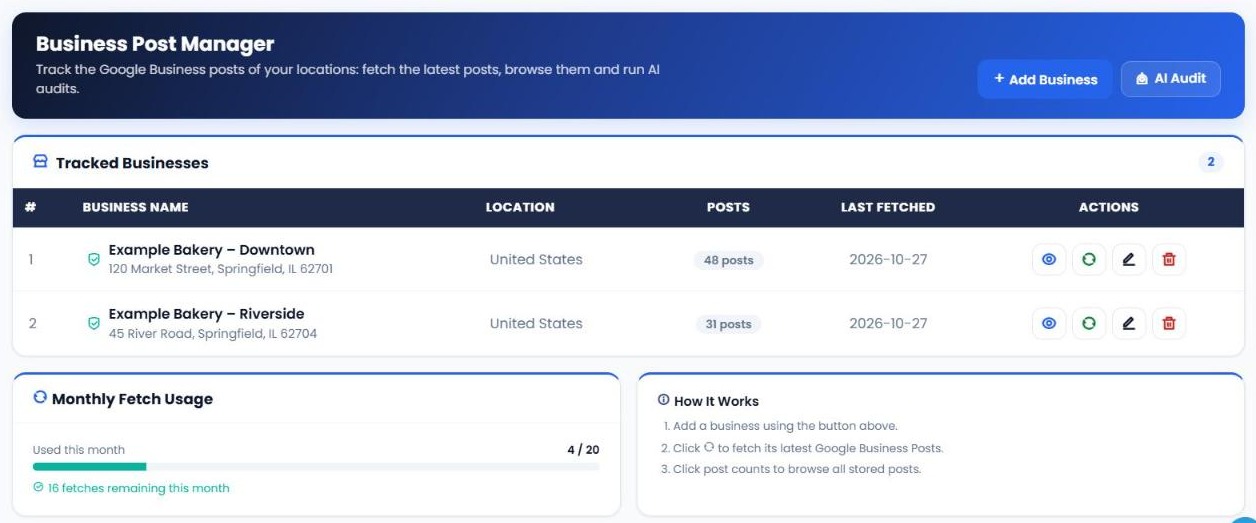
In Tracked Businesses, click the fetch icon next to a business to collect its latest Google Business posts. The table shows how many posts are stored and when they were last fetched. Your monthly fetch usage is shown on the same screen.
3. Browse your post history
Click a post count to browse every stored post for that business, organised so you can review your history by type instead of scrolling through Google's own interface.
4. Run an AI audit
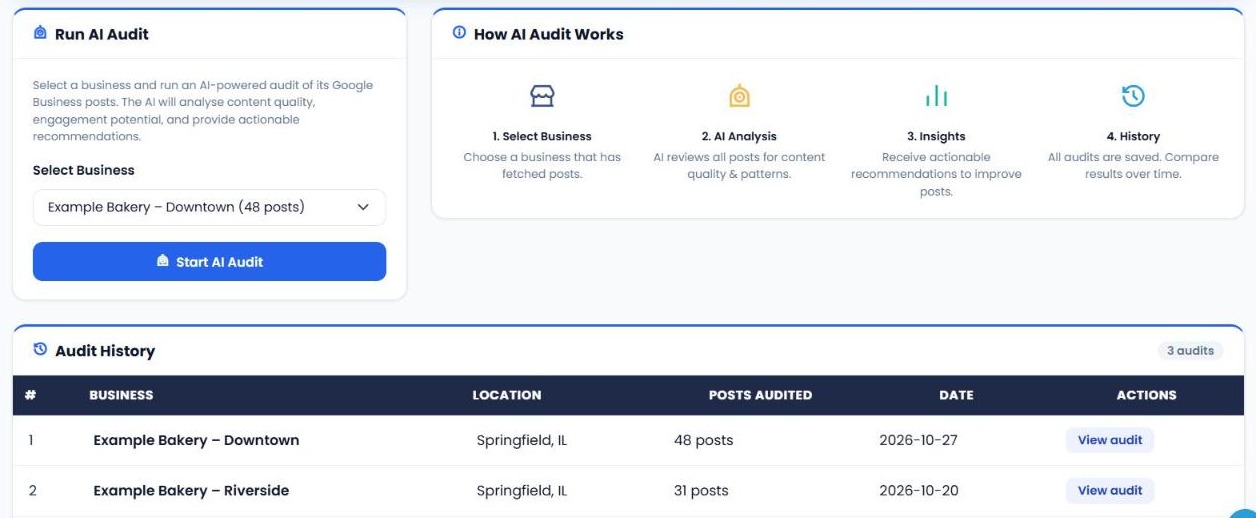
Open AI Audit, choose a business that has fetched posts and click Start AI Audit. The AI reviews all of the posts for content quality and patterns, and returns actionable recommendations to improve them.
5. Compare audits over time
Every audit is saved in Audit History. Reopen past audits to see whether your posting is improving after you act on the recommendations.
| Feature | What it does for you |
|---|---|
| Tracked Businesses | Lists each location with its stored post count and last fetch date. |
| Fetch posts | Collects the latest Google Business posts for a location. |
| Post browser | Lets you review every stored post in one place. |
| AI Audit | Reviews content quality and engagement potential, and recommends improvements. |
| Audit History | Saves every audit so you can compare results over time. |
| Monthly Fetch Usage | Shows how many fetches you've used and how many remain this month. |
What to look for first
When you review your posts and audit, check these in order:
- Posting gaps. Long periods with no posts make a listing look inactive. Aim for a steady rhythm.
- Repetition. If many posts say the same thing, mix in offers, events, news and product highlights.
- Calls to action. Make sure posts tell customers what to do next: call, book, visit or learn more.
- Images. Posts with clear, relevant photos stand out more on your listing.
- Location differences. If you manage several locations, compare them to find the ones that need more attention.
Business Post Manager vs. other tools in My PR Manager
| Tool | Best for |
|---|---|
| Business Post Manager | Reviewing your Google Business post history and getting an AI audit of it. |
| Business Listing Manager | Finding missing or inconsistent business listings across 13 platforms. |
| Business Review Stats | Tracking review counts and ratings over time. |
| Social Media Manager | Creating and publishing posts to your social channels. |
Who Business Post Manager is for
- Local businesses that post to Google Business Profile and want to know if it's paying off.
- Multi-location brands that need to keep posting consistent across every branch.
- Agencies managing Google Business Profiles for clients and reporting on their activity.
Frequently asked questions
What do I need to add a business?
The Google Place ID gives the most reliable results. You also need the business name exactly as it appears on Google, plus the location and language. The address is optional but recommended.
Why did fetching posts fail?
The most common reason is a business name that doesn't exactly match Google. Copy and paste the name from your Business Profile, or add the Place ID.
What does the AI audit look at?
It reviews all fetched posts for content quality, engagement potential and patterns, and gives actionable recommendations to improve them.
Are my audits saved?
Yes. Every audit is saved in Audit History so you can reopen it and compare results over time.
Is there a limit on fetches?
Fetches are counted monthly, and your usage and remaining fetches are shown on the Business Post Manager screen. Limits depend on your plan.
Can I track more than one location?
Yes. Add each location as a separate business and fetch and audit them individually.
Find out if your Google posts are working
Open Business Post Manager from the left menu in My PR Manager, add your business with its Place ID, fetch your posts and run your first AI audit. New to My PR Manager? Start your free trial.
Related guides: Business Listing Manager · Business Review Stats · Social Media Checker · Article Publisher


