
Journal: Every SEO Task, Tracked in One Place

Table of Contents
- Key takeaways
- What is the Journal?
- Who it's for
- How to track SEO tasks with the Journal
- 1. Create a project
- 2. Add a task
- 3. Assign it, set a deadline and a priority
- 4. See every task in one list
- 5. Move work across the Kanban board
- 6. Discuss tasks with comments
- 7. Log your time
- 8. Track progress on the dashboard
- Features at a glance
- Best practices for managing SEO tasks
- Journal vs. spreadsheets and generic project tools
- Frequently asked questions
- What is the Journal in My PR Manager?
- Can I assign SEO tasks to my team?
- Does the Journal track time spent on tasks?
- Can I keep some tasks private?
- Can I export Journal reports for clients?
- How is the Kanban board different from the task list?
- Start tracking your SEO work
SEO task management gets messy fast. Audits, title tag rewrites, broken links, Google Business posts and client requests all land at once, spread across weeks and several people. Spreadsheets drift out of date, chat threads bury decisions, and nobody can say for sure what was done last month. The Journal in My PR Manager gives your team one place to plan, assign and track every SEO task, right next to the tools that find the work in the first place.
Key takeaways
- Organise SEO work into projects, each tied to a website.
- Give every task an owner, due date, priority and progress, with optional email alerts.
- Move work across a Kanban board by dragging cards between status columns.
- Keep discussion on the task with comments, and record effort with time tracking.
- See status, workload and hours on a live dashboard, and export it as a PDF for clients.
What is the Journal?
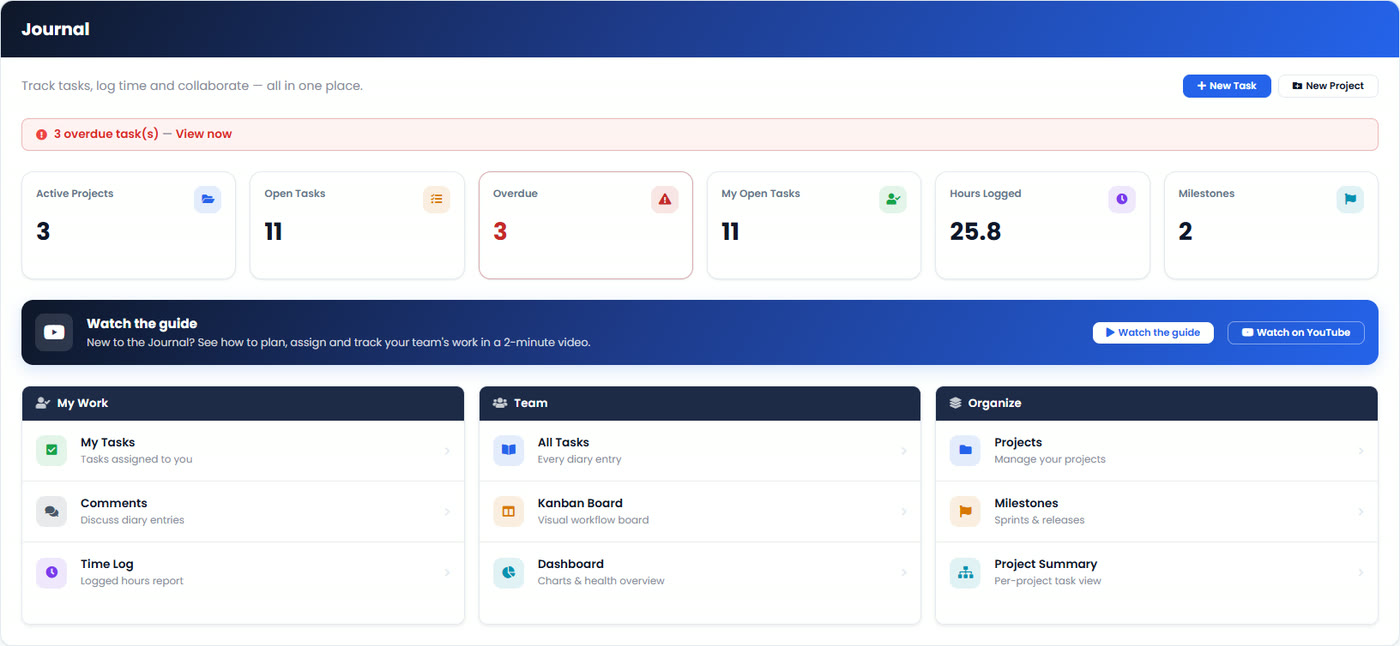
The Journal is a project and task manager built for SEO teams. It lives inside My PR Manager, so the website, the reports and the to-do list are in the same place. Instead of copying issues from an audit into a separate project tool, you log them as tasks, assign them, and track them to done, with a dated record of who did what and how long it took.
Who it's for
- SEO and digital agencies running work for several clients, who need to answer "what did we do this month?" without digging.
- In-house marketing teams sharing SEO, content and local search work between a few people.
- Freelancers and consultants who want a clean log of tasks and hours to back up their invoices and reports.
How to track SEO tasks with the Journal
1. Create a project
Start with a project for each campaign, client or initiative, such as "Website SEO Refresh" or "Holiday Marketing Campaign". Give it a name and a short description. It is saved under the website you have selected, so every task stays tied to the right site.
2. Add a task
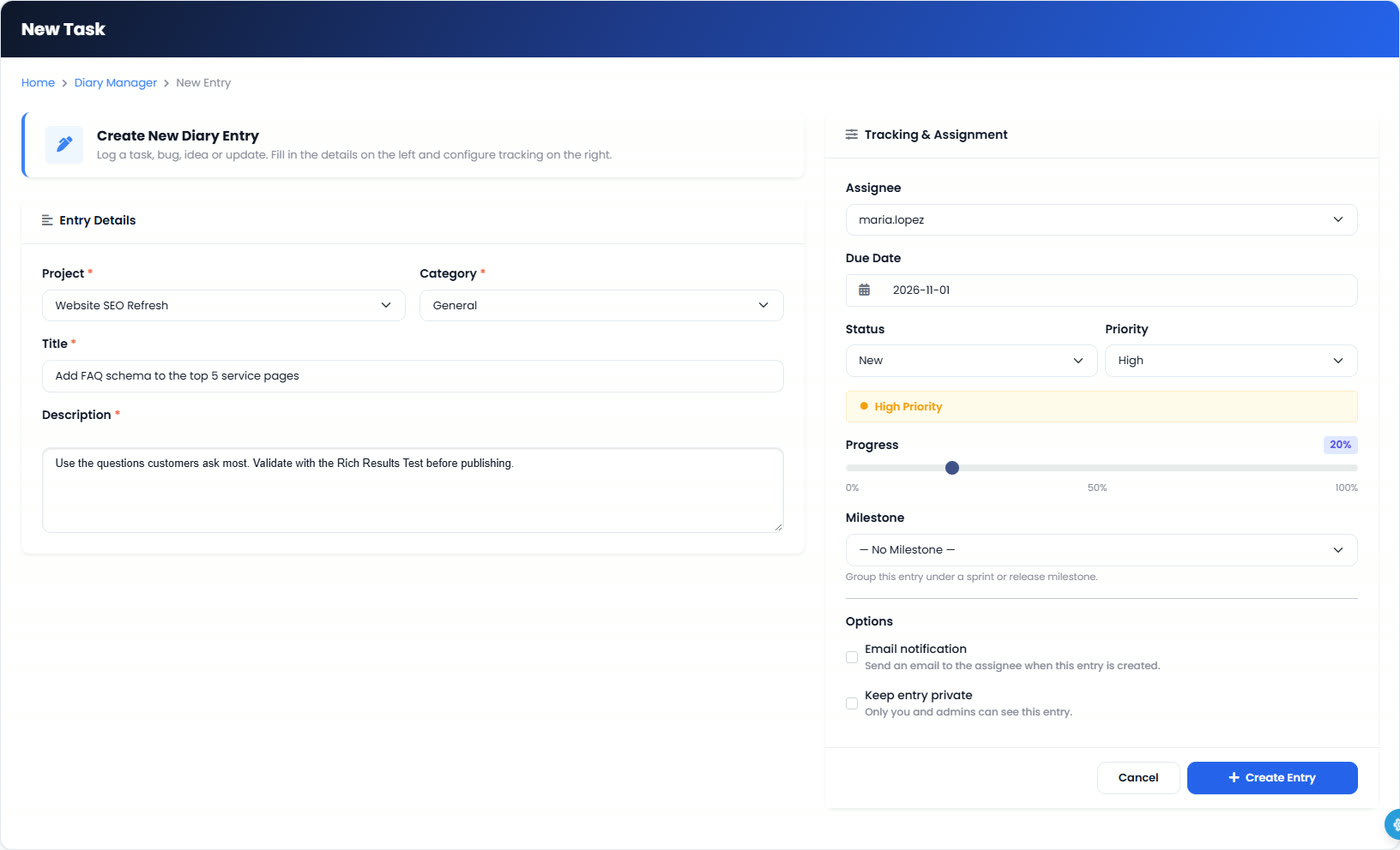
Click New Task, choose the project and a category (for example General, Directory submission, Newsletter or Social Media Submission), then write a clear title and describe what needs to be done. A good description saves a round of questions later: say what "done" looks like.
3. Assign it, set a deadline and a priority
On the right, choose the teammate who owns the task, set the due date and the priority (low, medium, high or critical), and record progress as a percentage. You can link the task to a milestone, keep it private (only you and the person it is assigned to can see it), and turn on email notification so the assignee is emailed when the task is created and reminded when it is due today or tomorrow.
4. See every task in one list
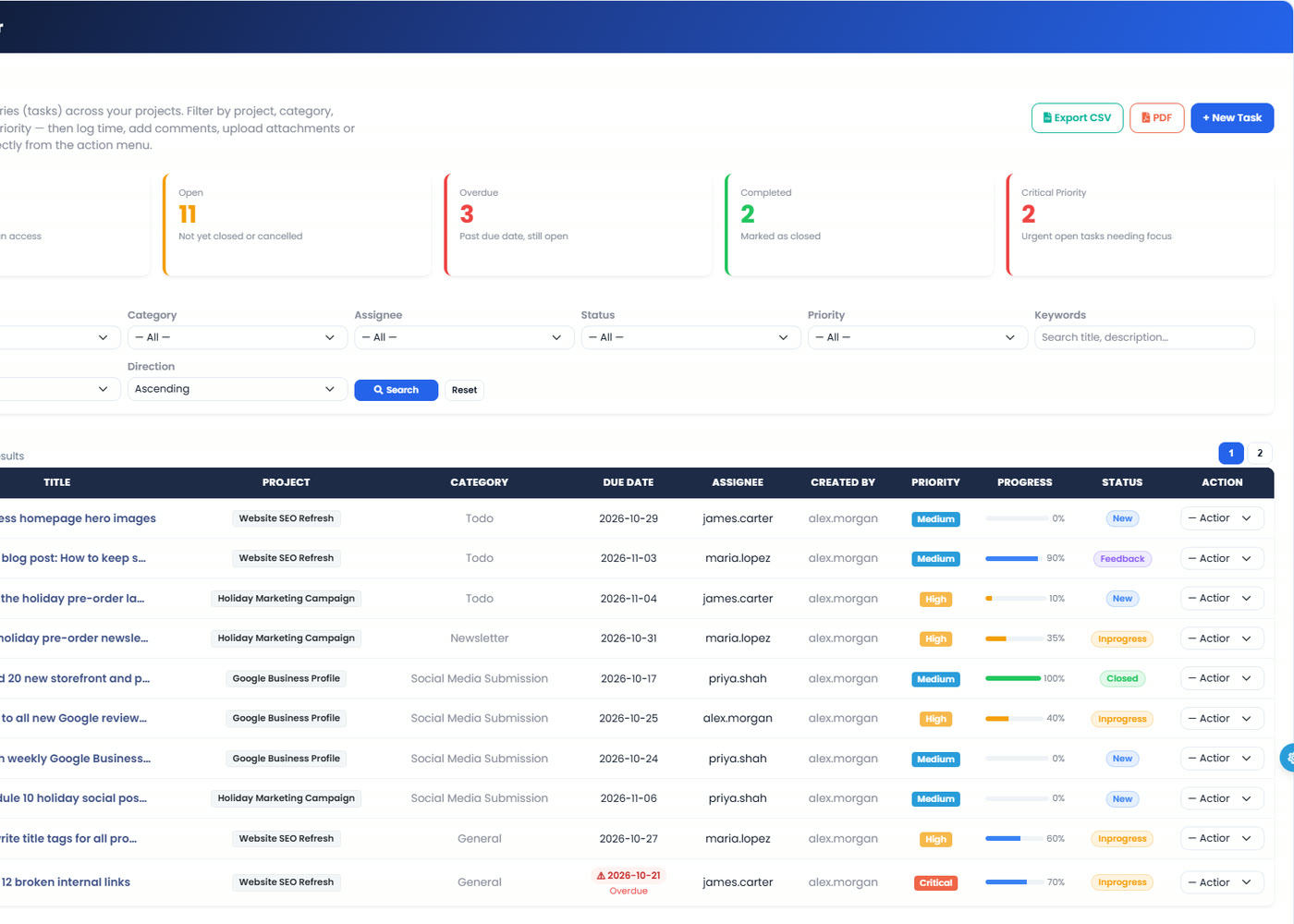
All Tasks lists your team's work with filters for project, category, assignee, status, priority and keyword. Overdue tasks are flagged in red, progress bars show how far along each one is, and you can export the list to CSV or PDF. Each team member also gets My Tasks, a personal view of what is assigned to them.
5. Move work across the Kanban board
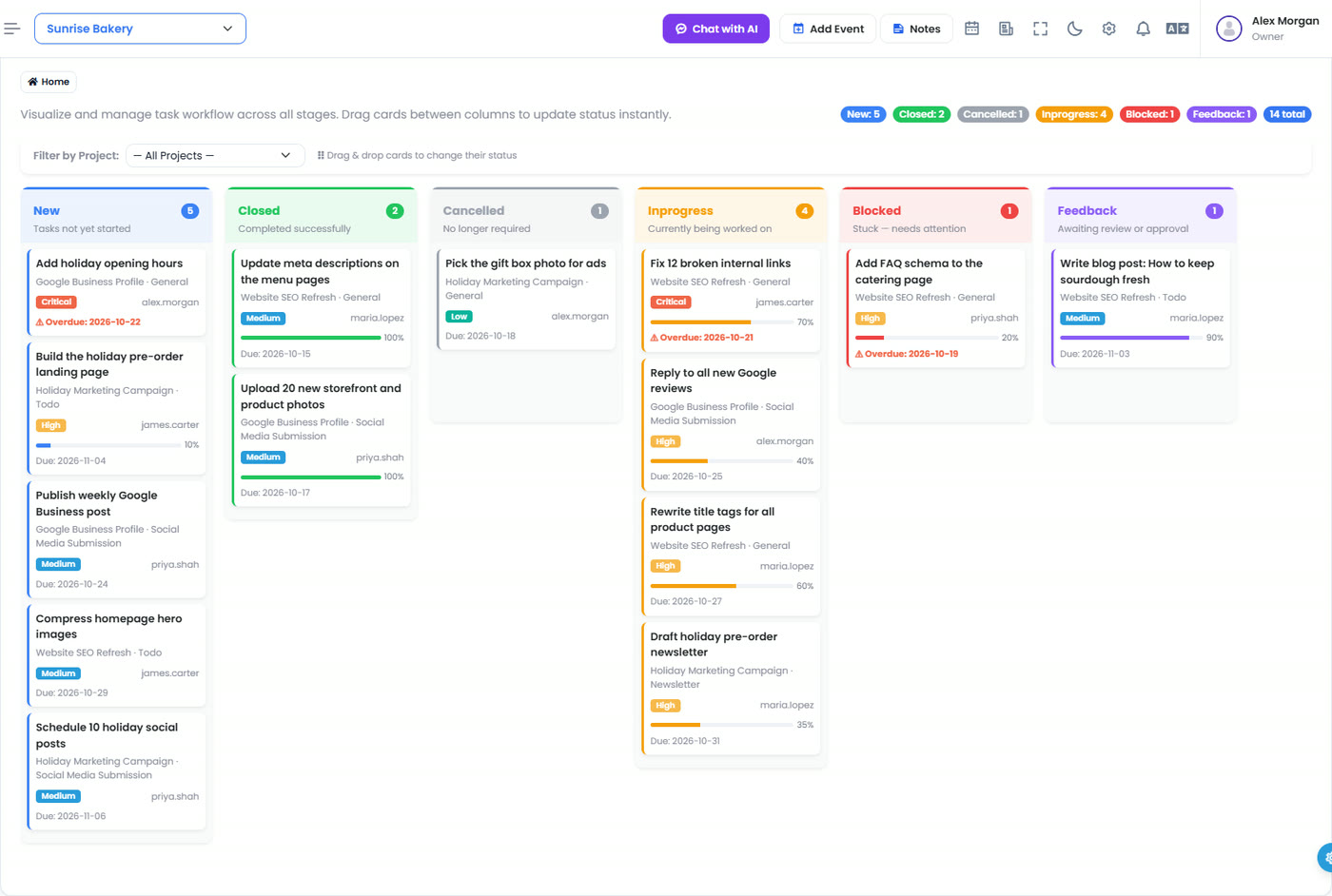
The Kanban board shows every status as a column: New, In progress, Feedback, Blocked, Closed and Cancelled. Drag a card to another column and its status is saved instantly; closing a task marks it 100% complete. Filter the board by project when you want to focus on one client.
6. Discuss tasks with comments
Choose Comments from a task's action menu to post updates, questions and approvals. The whole conversation stays attached to the task, so the context is still there months later, not lost in an email thread. You can also attach files to a task, such as a crawl export or a content draft.
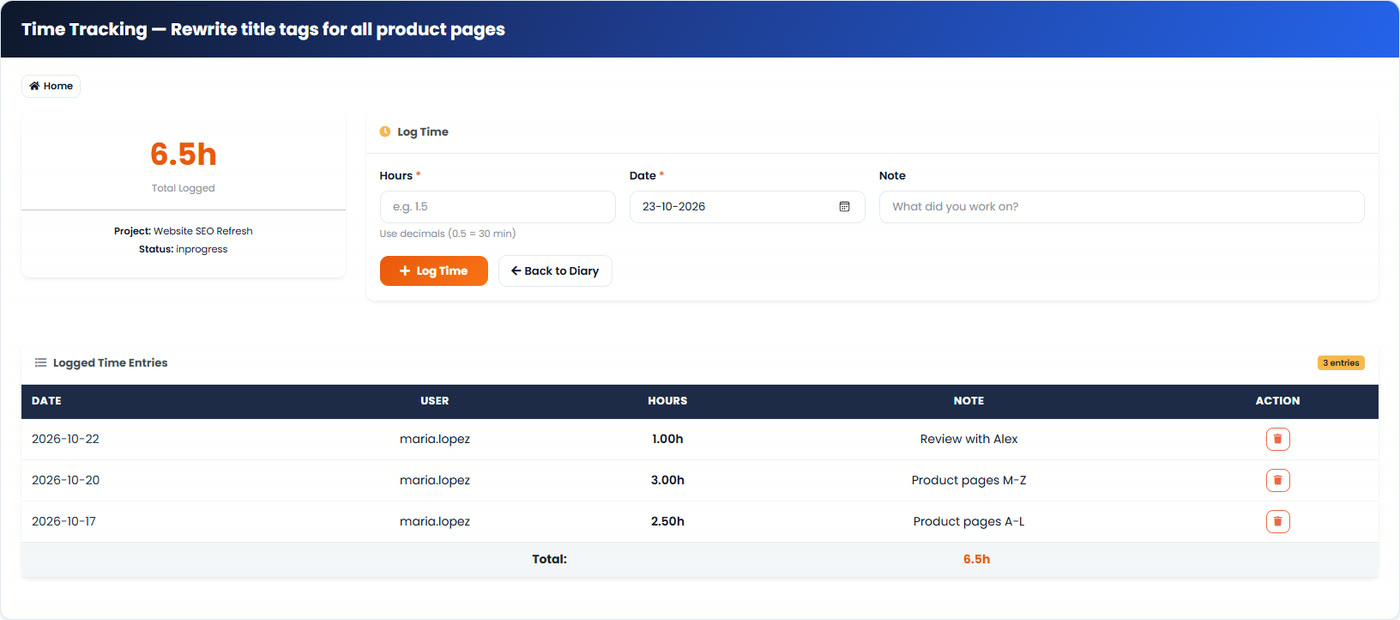
7. Log your time
Choose Log Time from the action menu, enter the hours and a short note, and the task's total updates instantly. The Time Log report adds hours up by project and team member, with a PDF export for billing or client reporting.
8. Track progress on the dashboard
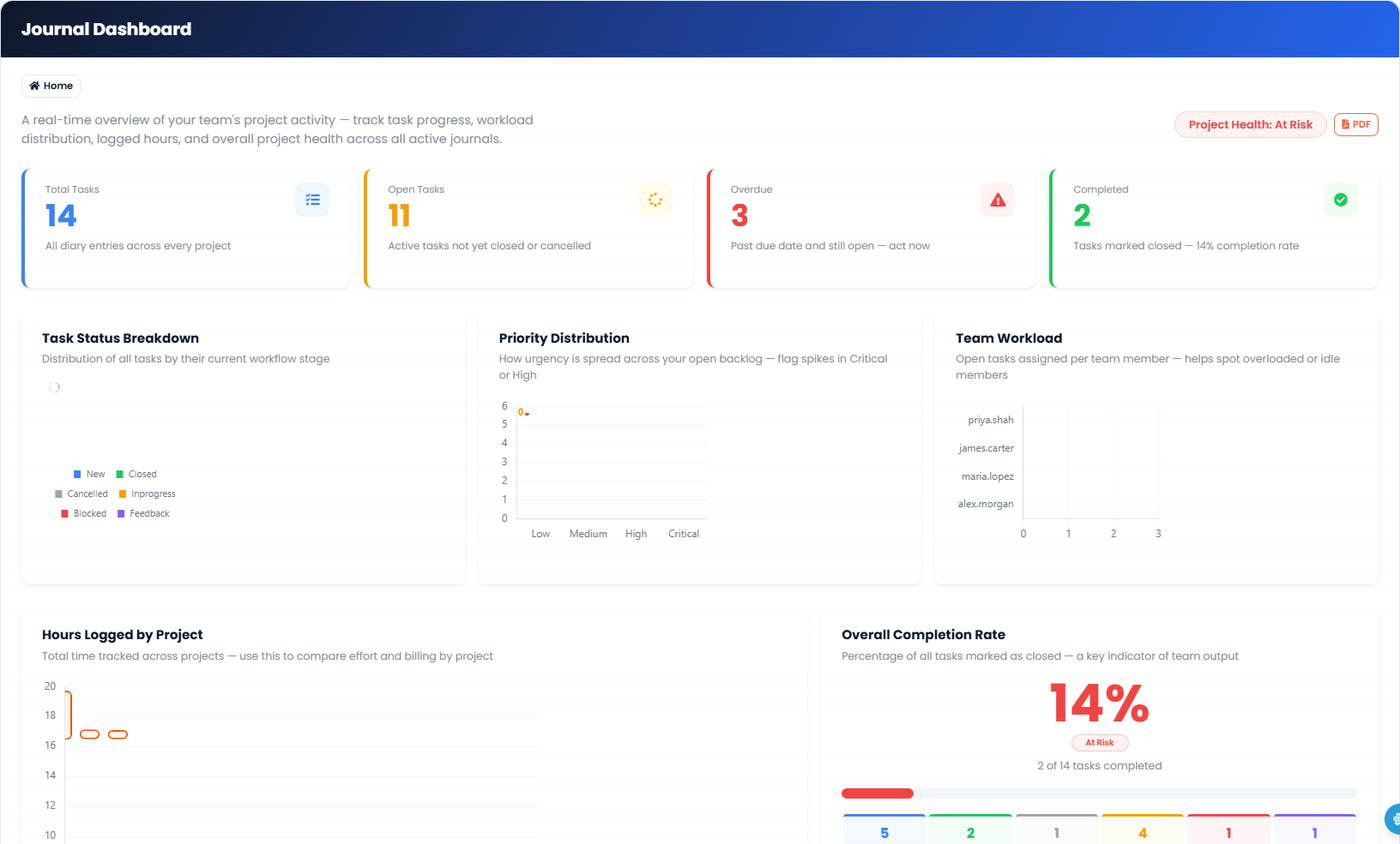
The Journal dashboard shows the big picture: total, open, overdue and completed tasks, a status breakdown, priority distribution, each person's workload and hours logged per project. Use the PDF button to share it with a client or manager.
Features at a glance
| Feature | What it does | Why it matters for SEO work |
|---|---|---|
| Projects | Group tasks by campaign or client, per website | Keeps each client's work separate and easy to report on |
| Tasks | Owner, category, due date, priority, progress, privacy | Everyone knows who is doing what, and by when |
| Kanban board | Drag-and-drop status columns | See bottlenecks, like blocked or waiting-for-feedback tasks, at a glance |
| Milestones | Group tasks under a sprint or release with a due date | Plan launches and track them as a whole |
| Comments and attachments | Discussion and files on the task itself | Decisions and evidence stay with the work |
| Time tracking | Hours and notes per task, Time Log report | Accurate billing and effort reporting |
| Dashboard | Status, priority, workload and hours charts | A health check of all SEO work in one view |
| Exports | CSV and PDF for tasks, time and the dashboard | Ready-made reports for clients and managers |
| Email alerts | Assignment emails and due-date reminders | Fewer missed deadlines |
Best practices for managing SEO tasks
- Turn audit findings into tasks straight away. When a Site Auditor crawl finds broken links or missing titles, log each fix as a task with an owner and a due date.
- Use priority honestly. Keep "critical" for issues that hurt rankings or revenue now, such as an indexing problem, so it still means something.
- Write the finish line into the description. "Rewrite 40 product titles under 60 characters" is clearer than "fix titles".
- Review the board once a week. Clear the Blocked and Feedback columns first; they are where SEO work quietly stalls.
- Log time as you go. Small daily entries are more accurate than estimates at the end of the month.
- Close the loop with results. After a batch of on-page fixes, check movement in the Keyword Position Checker or against rivals in the Competitors Tracker.
Journal vs. spreadsheets and generic project tools
A spreadsheet is free and flexible, but it has no owners, reminders, history or time tracking unless you build them yourself, and it goes stale the moment nobody updates it. Generic project tools are powerful, but they sit apart from your SEO data, so tasks get copied back and forth. The Journal is deliberately simpler: it covers the task management an SEO team needs, sitting next to the audits, rank tracking and reports in the same account.
Frequently asked questions
What is the Journal in My PR Manager?
The Journal is a built-in project and task manager for SEO work. You create projects, add tasks with an owner, due date and priority, move them across a Kanban board, discuss them in comments, log time, and follow everything on a dashboard.
Can I assign SEO tasks to my team?
Yes. Each task can be assigned to a user in your account, and with email notification turned on, the assignee is emailed when the task is created and reminded when it is due today or tomorrow.
Does the Journal track time spent on tasks?
Yes. You can log hours and a note against any task. The task shows its running total, and the Time Log report adds hours up by project and team member, with a PDF export.
Can I keep some tasks private?
Yes. Tick "Keep entry private" on a task and only you (the creator) and the person it is assigned to can see it.
Can I export Journal reports for clients?
Yes. You can export the task list as CSV or PDF, download the Time Log report as a PDF, and download the dashboard as a PDF.
How is the Kanban board different from the task list?
They show the same tasks. The list is best for filtering and exporting; the board is best for seeing where work is stuck and for changing a task's status by dragging its card to another column.
Start tracking your SEO work
If your SEO to-do list lives in a spreadsheet, a chat thread and someone's memory, move it into one place. Open Journal from the left menu in My PR Manager, create your first project, and add the next five tasks your team is working on. New to My PR Manager? Start your free trial.
Related guides: Article Rewrite Manager · Site Auditor · Newsletter Manager


