
Article Publisher: Write Once, Publish to Every Blog You Run

Table of Contents
- Key takeaways
- What is an article publisher?
- How Article Publisher works
- 1. Connect your publishing sites
- 2. Add knowledge cards for better AI writing
- 3. Set up a reusable article project
- 4. Create your article
- 5. Publish or schedule, then check the report
- Before you publish: what to check first
- Article Publisher vs. publishing by hand
- Who Article Publisher is for
- Frequently asked questions
- Which platforms can I publish to?
- What do I need to connect a self-hosted WordPress site?
- Can AI write the whole article?
- Can I schedule articles for later?
- Can I share new articles on social media automatically?
- How do I know an article was published?
- Can one blog connection be used by several projects?
- Start publishing on autopilot
Publishing consistently is one of the hardest parts of content marketing. Writing is only the start: you still have to log into each blog, paste the article, fix the formatting, add categories and tags, upload a featured image, schedule it and share it on social media. Article Publisher in My PR Manager handles that whole routine from one place. Connect your blogs once, create articles yourself or with AI, then publish or schedule them to the sites you choose and track every submission in a report.
Key takeaways
- Connect self-hosted WordPress, WordPress.com, Blogger and Tumblr blogs as publishing sites.
- Reusable article projects save your settings, so you don't re-enter the same details for every post.
- Create single articles, or multi-post articles for several sites, with AI help for titles, descriptions and full drafts.
- Knowledge cards give the AI accurate details about your brand, services and products.
- Publish now or schedule for later, announce posts on your social channels and check the live link in Submission Reports.
What is an article publisher?
An article publisher is a tool that sends your articles to your blogs for you. Instead of copying content into every site's dashboard, you write and format it once, choose where it should go, and the tool publishes it, with the right title, categories, tags and featured image, on time.
For businesses and agencies running several blogs, that turns hours of repetitive admin into a few clicks, and makes it much easier to keep a regular publishing schedule.
How Article Publisher works
1. Connect your publishing sites
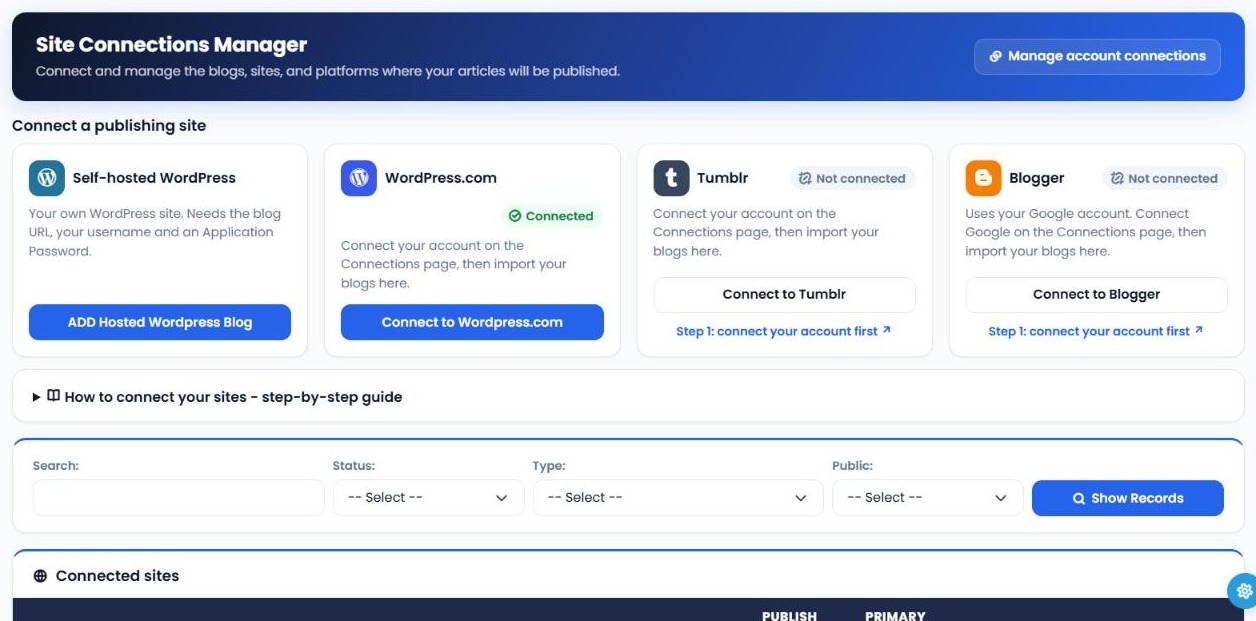
Open Site Connections Manager and connect the blogs you want to publish to. For a self-hosted WordPress site you enter the blog URL, your username and a WordPress Application Password. For WordPress.com, Tumblr and Blogger, you first connect your account on the Connections page, then import your blogs. Add the categories and tags you want each connection to use.
If you manage several projects in My PR Manager, you can set a connection to Public, so the same site is available to all your active projects.
2. Add knowledge cards for better AI writing
If you plan to write with AI, create a few knowledge cards in Knowledge Card Manager. They hold the facts about your business, such as your services, products, locations and tone of voice, so AI-generated titles, descriptions and articles reflect your brand rather than generic content.
3. Set up a reusable article project
In Project Manager, create an article project. It stores which site connection to publish to, whether to announce the article on your social media channels, and other settings. Projects can be reused any number of times, so you only enter those details once.
A multi-post project lets you choose several blogs, and calculates how many unique versions of an article you need to publish across them.
4. Create your article
Open Article Manager and choose how you want to create it:
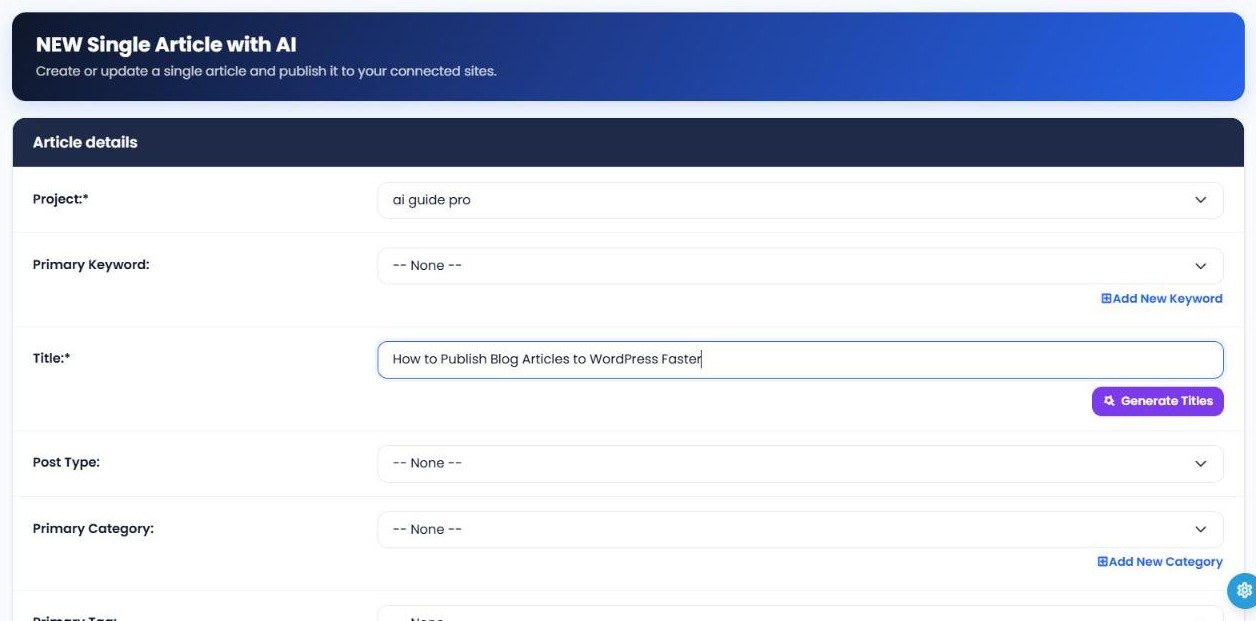
- NEW Single Article with AI: one article for one site, written by you or with AI help.
- NEW Multi-Post Article with Spinner: creates multiple versions of a main article with a spin rewriter, one for each site.
- NEW Multi-Post Article with Shuffle: creates versions for each site by re-ordering the article's paragraphs and headings.
Enter a keyword or phrase and click Generate Titles to get several AI title ideas, then pick the best. Do the same for the description, optionally adding a knowledge card to brand it. To draft the full article, open more AI options, set your instructions and click to generate. It takes about a minute. Finally, upload a featured image to include when the article is published.
5. Publish or schedule, then check the report
In Article Publisher/Scheduler, choose the project and article, then publish immediately or schedule a date and time. Once it's live, Submission Reports shows the status of every post, with a link to visit the published article.
| Area | What it does |
|---|---|
| Site Connections Manager | Connects self-hosted WordPress, WordPress.com, Blogger and Tumblr blogs, with categories and tags for each. |
| Knowledge Card Manager | Stores your brand, service and product details to guide AI-written content. |
| Project Manager | Saves reusable publishing settings for single or multi-post articles. |
| Article Manager | Creates, edits and previews articles, with AI titles, descriptions and drafts. |
| Article Publisher/Scheduler | Publishes articles now or on a schedule, and can announce them on social media. |
| Submission Reports | Shows the status of every published article with a link to the live post. |
| Plan Usage | Shows how many submissions you have left on your plan. |
Before you publish: what to check first
AI makes drafting fast, but you should never publish an AI article without reading it. Before every post, check these in order:
- Accuracy. Make sure facts, prices, names and claims are correct. Update your knowledge cards if the AI keeps getting something wrong.
- Headings. Check there's one main title, no duplicated heading at the top, and clear subheadings for each section.
- Usefulness. Add your own examples, tips or experience, so the article is genuinely helpful and not just generic text.
- Unique versions. For multi-post articles, read each version and make sure it reads naturally and adds value on its own. Search engines can treat thin, near-duplicate or automatically generated pages as low quality, so edit them rather than publishing them untouched.
- Links and media. Add relevant internal links, a featured image and any pictures or videos that help the reader.
- Settings. Confirm the right site, category, tags and publish time before you schedule.
If you don't like a draft, generate it again. If you keep getting results you don't like, adjust your knowledge card and AI options. Once they're tuned, the AI will write closer to your style each time.
Article Publisher vs. publishing by hand
| Publishing by hand | Article Publisher | |
|---|---|---|
| Logins | Log into every blog separately | Connect each blog once |
| Writing | Start every article from a blank page | AI titles, descriptions and drafts based on your knowledge cards |
| Settings | Re-enter categories, tags and options each time | Saved in reusable projects |
| Scheduling | Schedule inside each blog's dashboard | Publish now or schedule from one screen |
| Tracking | Check each blog to confirm the post went live | Submission Reports with live links |
Who Article Publisher is for
- Business owners who want to keep their blog active without spending hours on publishing admin.
- Marketing agencies that publish content to several client blogs every week.
- Content teams that plan, write and schedule articles across multiple sites.
Frequently asked questions
Which platforms can I publish to?
Self-hosted WordPress sites, WordPress.com, Blogger and Tumblr.
What do I need to connect a self-hosted WordPress site?
Your blog URL, your WordPress username and an Application Password, which you can create in your WordPress user profile.
Can AI write the whole article?
Yes. Article Publisher can suggest titles and descriptions and generate a full draft from a keyword. Always proofread and edit the result before publishing.
Can I schedule articles for later?
Yes. In Article Publisher/Scheduler you can publish immediately or choose a date and time.
Can I share new articles on social media automatically?
Yes. In your article project you can choose to announce the article on your connected social media channels.
How do I know an article was published?
Check Submission Reports. It shows the status of each article and a link to the live post.
Can one blog connection be used by several projects?
Yes. Set the site connection to Public, and it becomes available to all your active projects.
Start publishing on autopilot
Open Article Publishing Manager from the left menu in My PR Manager, connect your first blog in Site Connections Manager, and create your first article with AI. In a few minutes you'll have it scheduled and on its way. New to My PR Manager? Start your free trial.
Related guides: Keyword Research Tool · Page URL Indexer · SEO Dashboard · My PR Manager Support


