
New Project Setup: How to Create Your First My PR Manager Project

Table of Contents
- Key takeaways
- What is a project in My PR Manager?
- Website Project vs. Social Project
- How to set up a new project
- 1. Open Projects Manager
- 2. Fill in the Website Project details
- 3. Connect Google to link Google Analytics
- 4. Or set up a Social Project
- 5. Save and finish the setup
- What to double-check before you save
- After setup: what to do next
- Who this guide is for
- Frequently asked questions
- Where do I create a new project?
- What's the difference between a Website Project and a Social Project?
- Can I change my project's URL later?
- Can I import my existing websites?
- Why can't I see my Google Analytics property?
- How many projects can I create?
- Can I have both a Website Project and a Social Project?
- Create your first project
Everything you do in My PR Manager, from tracking rankings and running audits to publishing articles and social posts, happens inside a project. A project is simply one website or brand, with its own settings, keywords and data. Set it up well and every tool works from the right information from day one. Rush it, and you may have to start again, because a few fields can't be changed after the project is created. This guide walks you through choosing the right type of project, filling in each field, and connecting your Google data.
Key takeaways
- Create projects in Settings, under Projects Manager. Choose a Website Project for full tracking, or a Social Project for posting only.
- A Website Project unlocks analytics, rankings, audits, reviews and publishing. A Social Project needs only a name, title, description and keywords.
- The URL, default country and default search engines can't be changed after a Website Project is created, so double-check them before you save.
- Add your main keywords, separated by commas, so My PR Manager understands what your website is about.
- Connect your Google account and choose a Google Analytics property to bring traffic data into the project.
What is a project in My PR Manager?
A project is the container for one website or brand. It holds the site's URL, keywords, target country and search engines, plus its connected Google Analytics property, social channels and publishing settings. Your reports, audits and posts are all organised by project, so data from different websites never gets mixed up. Agencies can create one project per client and switch between them from the project menu at the top of the dashboard.
Website Project vs. Social Project
| Website Project (full project) | Social Project (media posting only) | |
|---|---|---|
| Best for | Businesses that want to grow their website's search visibility and online presence | Social media managers, bloggers and brands focused only on social posting |
| Website analytics and Google data | Yes | No |
| Keyword rankings and site audits | Yes, including technical, keyword and page rank audits | Live single-page audits, page rank audits and keyword research |
| Social media stats and reviews | Yes | Social posting |
| Publish articles and social posts | Yes | Yes |
| Details to fill in | More, because the website is tracked | Fewer: name, title, description and keywords |
How to set up a new project
1. Open Projects Manager
Go to Settings and open Projects Manager. You'll see your existing projects with their type, URL, country and setup status. From here, choose New Website Project or New Social Project. If your sites are already in Google Search Console, you can use Import Google Console Website Projects instead of adding them one by one.
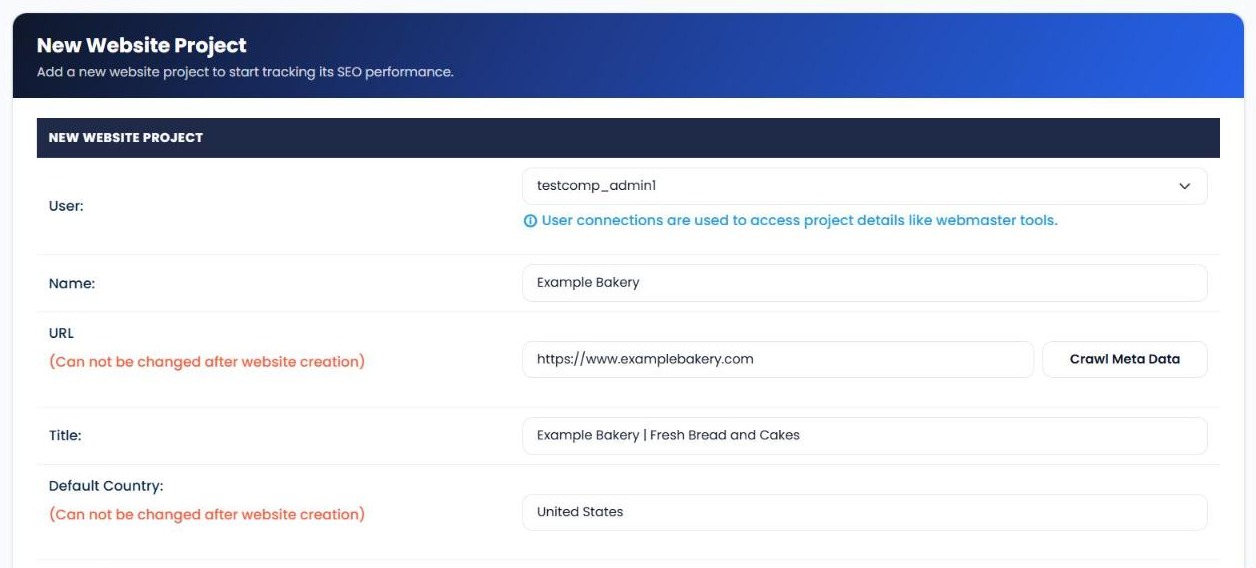
2. Fill in the Website Project details
For a Website Project, choose the user whose connections the project should use. User connections are what give the project access to details like Search Console data. Then add:
- Name: how the project appears in your project menu, for example your business name.
- URL: your website's full address, including https://. Click Crawl Meta Data to pull details from your site's meta tags.
- Title: your site's title, usually your brand and what you do.
- Default Country: the country whose search results you want to track.
- Default Search Engines: the search engines to track, up to the limit on your plan.
- Description: a short summary of your website.
- Keywords: your main keywords, separated by commas, so the system can better understand your website.
- Google Analytics Property: the GA4 property for this website.
3. Connect Google to link Google Analytics
To choose a Google Analytics property, the project's user needs a connected Google account. Connect it first, then select the property in the project form. If you add new properties later, use Sync Latest Google Analytics Property IDs in Projects Manager to refresh the list. For the Google side of the setup, see our guide to connecting Google Analytics and Search Console.
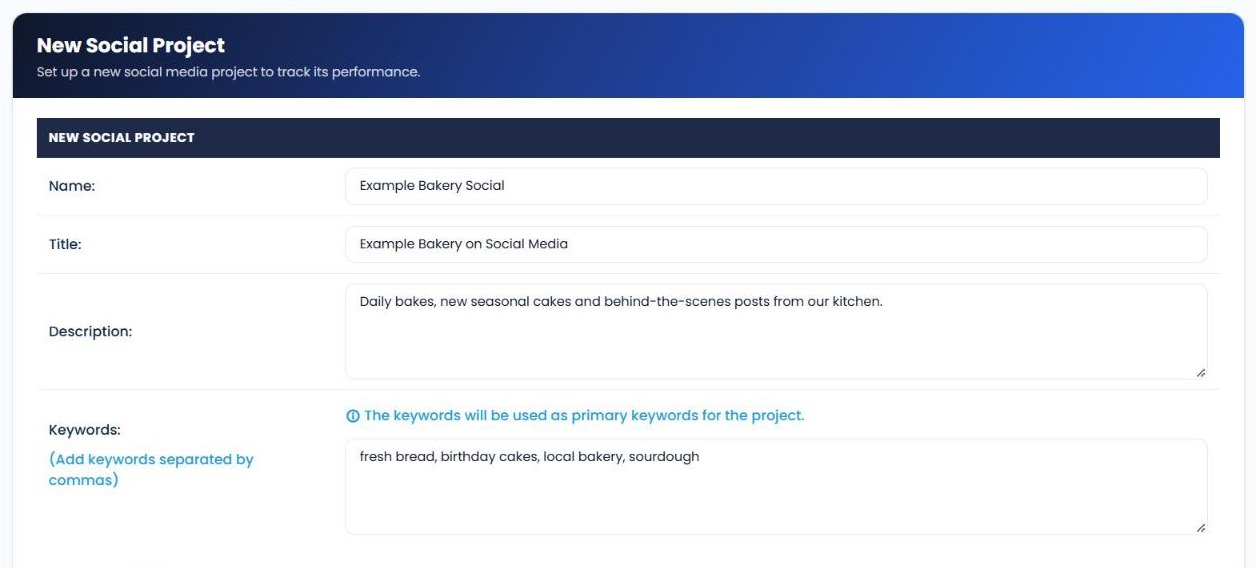
4. Or set up a Social Project
If you only need social media posting, choose New Social Project. It needs fewer details because there's no website tracking: just a name, title, description and keywords. The keywords become the project's primary keywords.
5. Save and finish the setup
Click Save. Your project appears in Projects Manager, where the Setup Status column shows whether anything is still pending. Select the project from the menu at the top of the dashboard to start using it.
What to double-check before you save
Some details are permanent, so check these first:
- URL. It can't be changed after creation. Use the exact version of your site that people visit, including https:// and www or non-www.
- Default country. It can't be changed later either. Pick the country where your customers search.
- Default search engines. They're also fixed after creation, and limited by your plan.
- Keywords. Add your main products, services and locations, separated by commas.
- Google Analytics property. Make sure it's the property for this website, not another one in your Google account.
- User. Choose the user whose connected accounts should power this project.
After setup: what to do next
- Add the keywords you want to rank for and start tracking with Keyword Position Checker.
- Run your first crawl with Site Auditor to find technical issues.
- Connect your blogs and start publishing with Article Publisher.
- Check your SEO dashboard once your data starts coming in.
Who this guide is for
- New My PR Manager users setting up their first website or brand.
- Agencies adding client websites as separate projects.
- Social media managers who only need a posting project, without website tracking.
Frequently asked questions
Where do I create a new project?
Go to Settings and open Projects Manager, then choose New Website Project or New Social Project.
What's the difference between a Website Project and a Social Project?
A Website Project tracks your website, with analytics, rankings, audits and reviews, as well as publishing. A Social Project is for social media posting only and needs fewer details.
Can I change my project's URL later?
No. The URL, default country and default search engines can't be changed after a Website Project is created. If one of them is wrong, create a new project.
Can I import my existing websites?
Yes. Use Import Website Projects, or Import Google Console Website Projects to bring in sites you've already verified in Google Search Console.
Why can't I see my Google Analytics property?
Make sure the project's user has a connected Google account with access to the property, then use Sync Latest Google Analytics Property IDs.
How many projects can I create?
It depends on your plan. See our plans for details.
Can I have both a Website Project and a Social Project?
Yes. You can create as many projects of each type as your plan allows and switch between them from the project menu.
Create your first project
Open Settings, go to Projects Manager and choose the project type that fits. In a few minutes you'll have your website or brand set up and ready for tracking, audits and publishing. New to My PR Manager? Start your free trial, or ask our support team if you get stuck.
Related guides: Connect Google Analytics and Search Console · Site Auditor · Article Publisher · My PR Manager overview


